How it works
Jak to działa
It plays along
with your instrument.
Gra razem
z Twoim instrumentem.
Continuo Console doesn't take anything over. It listens: which style is loaded, the tempo, the bar, the section that's playing. And at the right moment it sends the voices, the mix and the effects you set for that moment.
Continuo Console niczego nie przejmuje. Słucha: jaki styl jest wczytany, jakie jest tempo, który takt, która sekcja gra. I w odpowiednim momencie dosyła brzmienia, miks i efekty, które ustawiłeś na ten moment.
style loaded · tempo · bar · section wczytany styl · tempo · takt · sekcja
your voices · mix · effects · automation, right on time Twoje brzmienia · miks · efekty · automatyka, w samą porę
-
01
Connect
Over Wi-Fi or a USB cable. On the first start a short wizard finds the instrument on your network by its name, so there's no IP address to type. After that the app connects by itself every time it opens, and stays connected while the screen is locked.
Under the hood
Over Wi-Fi the app speaks RTP-MIDI (AppleMIDI). The instrument doesn't announce itself on the network, so the app sends an invitation to every address of the local network at once and listens for 1.2 s: the instrument answers with its name. If the router later gives it another address, the app finds it again by that name. Over USB the tablet is the host and the instrument's USB TO HOST port the device. Exactly one connection owns the instrument at a time.
Połączenie
Przez Wi-Fi albo kabel USB. Przy pierwszym starcie krótki kreator sam znajduje instrument w sieci po jego nazwie, więc nie trzeba wpisywać adresu IP. Potem aplikacja łączy się sama przy każdym otwarciu i trzyma połączenie także przy zablokowanym ekranie.
Pod maską
Przez Wi-Fi aplikacja mówi RTP-MIDI (AppleMIDI). Instrument nie ogłasza się w sieci, więc aplikacja wysyła zaproszenie naraz na każdy adres sieci lokalnej i słucha przez 1,2 s: instrument odpowiada swoją nazwą. Jeśli router da mu później inny adres, aplikacja znajdzie go po tej nazwie. Przez USB tablet jest hostem, a port USB TO HOST instrumentu urządzeniem. Instrument ma naraz dokładnie jedno połączenie.
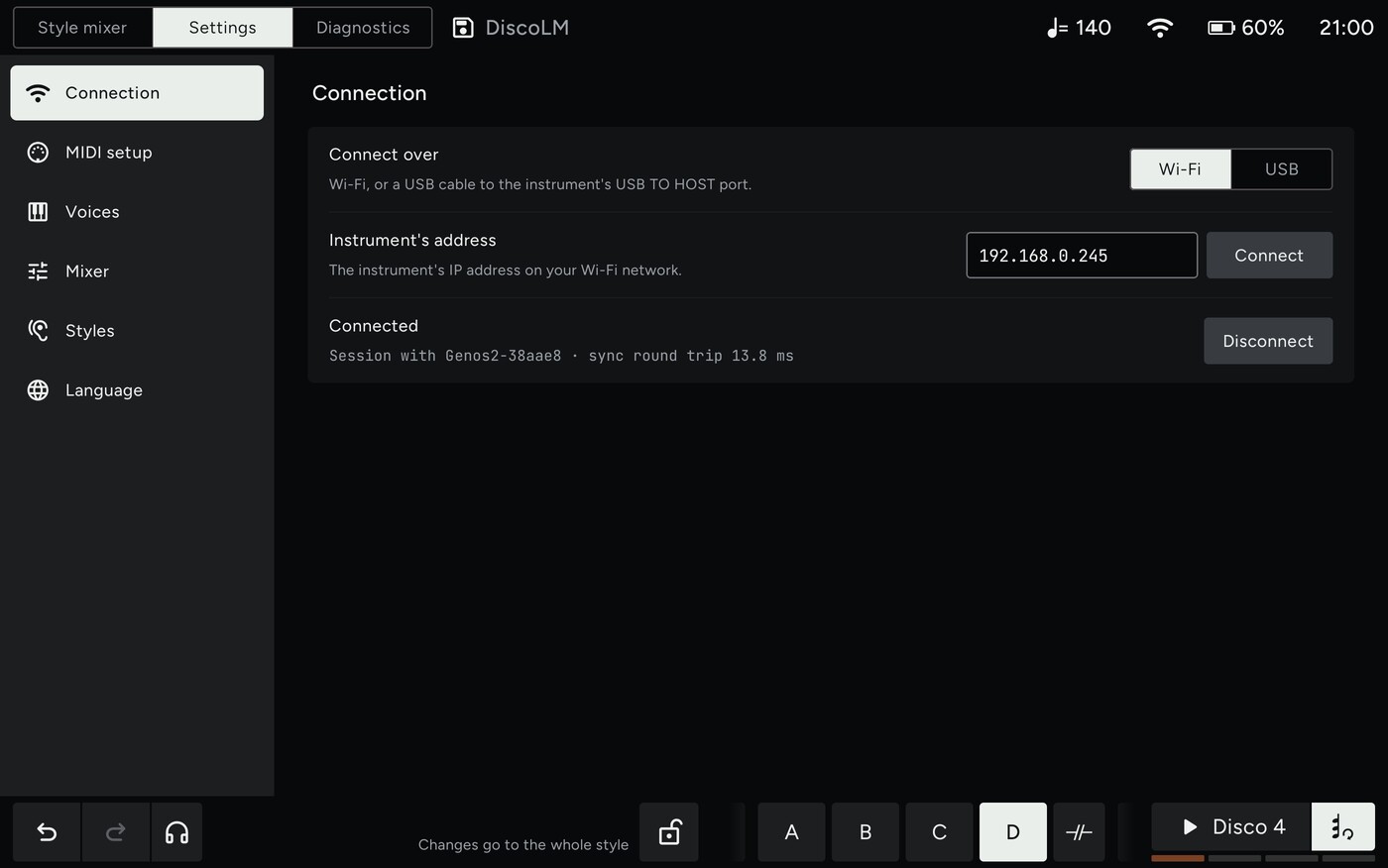
The first start: Wi-Fi or USB, then the searchPierwszy start: Wi-Fi albo USB, potem wyszukiwanie -
02
newThe style is recognised and learned
Pick a style on the panel, as you always do. The first time the app meets a style it learns it: it goes through every section, intros, Main A to D, fills, Break and endings, and notes what each one sets up. That takes a few seconds and happens once per style, never again.
From then on the app knows the style in 0.1 s.
Under the hood
A style load has a signature: a tempo message together with both drum parts' setup, within 15 ms. Right after it the app reads one block of a drum part's settings and puts it together with the exact tempo into a fingerprint. Only an exact match counts, so two styles are never taken for one another; anything else is a new style.
Learning sends each section in turn while the style is stopped, and records what the instrument announces for it. Press Start or choose a section on the panel and learning steps aside, to try again at the next rest. While the style is being recognised, the app sends nothing.
nowośćStyl zostaje rozpoznany i poznany
Wybierasz styl na panelu, jak zawsze. Gdy aplikacja spotyka styl pierwszy raz, poznaje go: przechodzi przez każdą sekcję, intra, Main A do D, przejścia, Break i zakończenia, i zapisuje, co każda z nich ustawia. Trwa to kilka sekund i dzieje się raz na styl, nigdy więcej.
Od tej pory aplikacja rozpoznaje ten styl w 0,1 s.
Pod maską
Wczytanie stylu ma swój podpis: komunikat tempa razem z ustawieniami obu partii perkusji, w ciągu 15 ms. Zaraz po nim aplikacja odczytuje jeden blok ustawień partii perkusji i razem z dokładnym tempem składa z nich odcisk palca. Liczy się tylko dokładne trafienie, więc dwa style nigdy nie zostaną wzięte za jeden; wszystko inne to nowy styl.
Nauka wysyła po kolei każdą sekcję, gdy styl stoi, i zapisuje, co instrument dla niej ogłasza. Naciśnij Start albo wybierz sekcję na panelu, a nauka ustąpi i spróbuje znowu przy następnej przerwie. Podczas rozpoznawania aplikacja niczego nie wysyła.
A new style is learned section by section, once. A known one is recognised in a tenth of a second.Nowy styl jest poznawany sekcja po sekcji, raz. Znany zostaje rozpoznany w dziesiątą część sekundy. -
03
A mixer that shows everything
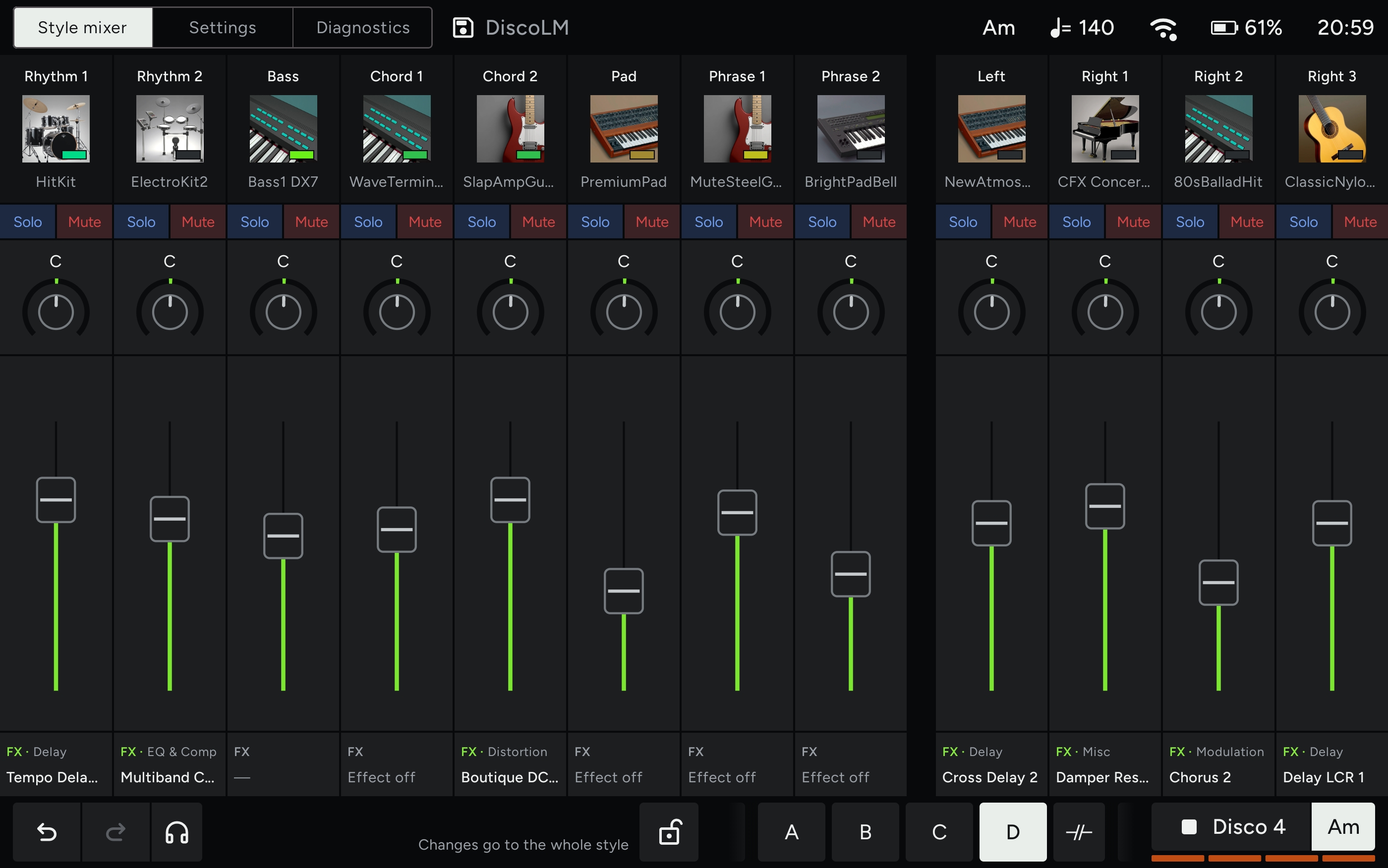
Every style part and your keyboard parts (Left, Right 1 to 3) on one screen: volume, pan, solo, mute, reverb, chorus and variation sends, EQ.
Each part shows its full picture: the voice with its icon, where it comes from (Legacy, MegaVoice and so on), its kind (Live!, Cool!, S.Art2), the notes lighting up as they play, and the effect it runs through.
Under the hood
The instrument tells the outside world only what changes on its own panel, never what it was told over MIDI. So the app reads every part when it connects and after every style load, follows the panel from then on, and knows its own changes because it made them. While the style plays, its patterns send the same messages as the panel's knobs; the app tells them apart and never takes a pattern's move for yours.
Mikser, który pokazuje wszystko
Każda partia stylu i Twoje partie klawiatury (Left, Right 1 do 3) na jednym ekranie: głośność, panorama, solo, mute, wysyłki na pogłos, chorus i variation, EQ.
Każda partia pokazuje pełną informację: brzmienie z ikoną, skąd pochodzi (Legacy, MegaVoice i inne), jego rodzaj (Live!, Cool!, S.Art2), nuty zapalające się w trakcie gry i efekt, przez który przechodzi.
Pod maską
Instrument mówi światu tylko o tym, co zmienia się na jego własnym panelu, nigdy o tym, co dostał przez MIDI. Dlatego aplikacja odczytuje każdą partię po połączeniu i po każdym wczytaniu stylu, potem śledzi panel, a swoje zmiany zna, bo sama je zrobiła. Kiedy styl gra, jego patterny wysyłają te same komunikaty co gałki panelu; aplikacja odróżnia jedno od drugiego i nigdy nie bierze ruchu patternu za Twój.
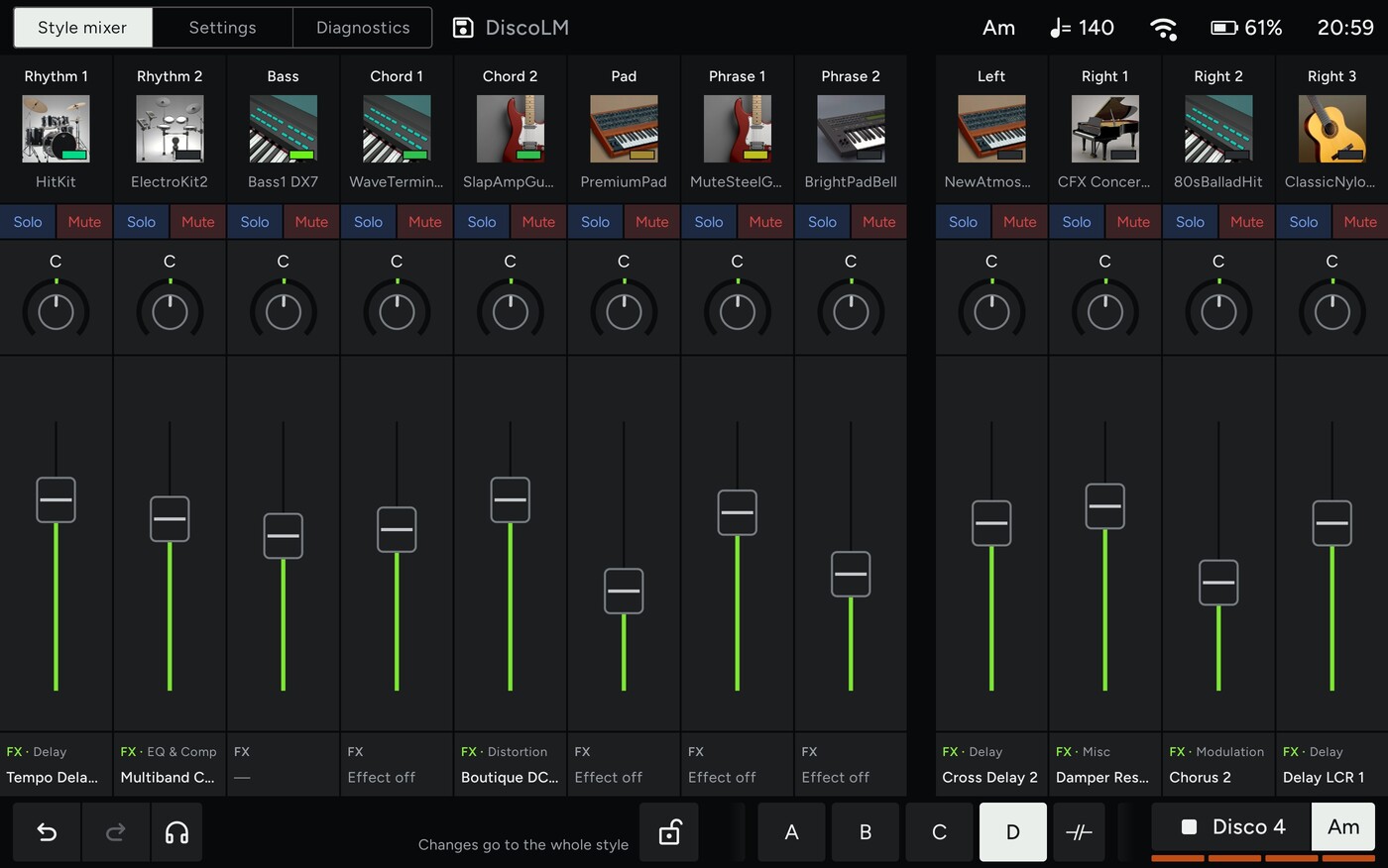
The style mixer: style parts, then Left and RightMikser stylu: partie stylu, potem Left i Right -
04
Shape the sound, hear the original
Open a part and its voice opens like a synth's editor: the filter on an XY pad (cutoff and resonance), the envelope as a picture, EQ, vibrato rate, depth and delay, octave and semitones, detune, portamento, velocity response and controllers.
Every change is kept in the background. Press the headphones and you hear the style exactly as it was loaded, without any of your edits. Press again and your version is back, even while the style plays.
Under the hood
The screen is built from the instrument's parameter map, not drawn parameter by parameter: each setting is placed by what it means (a filter, an envelope, a vibrato), and a part shows only the settings it really takes. The instrument stores the envelope as offsets from the voice, not as times, so the picture is a preview of the shape.
The preview of the original sends only what differs between your version and the style as loaded, and the same way back, so switching is quick enough to compare by ear. Nothing goes into the history while you listen.
Kształtuj brzmienie, słuchaj oryginału
Otwórz partię, a jej brzmienie otworzy się jak edytor syntezatora: filtr na padzie XY (cutoff i rezonans), obwiednia jako wykres, EQ, wibrato (szybkość, głębokość, opóźnienie), oktawa i półtony, detune, portamento, reakcja na dynamikę i kontrolery.
Każda zmiana jest przechowywana w tle. Naciśnij słuchawki, a usłyszysz styl dokładnie taki, jaki był wczytany, bez żadnej Twojej zmiany. Drugie naciśnięcie i wraca Twoja wersja, także gdy styl gra.
Pod maską
Ekran jest zbudowany z mapy parametrów instrumentu, a nie rysowany parametr po parametrze: każde ustawienie trafia na miejsce według tego, czym jest (filtr, obwiednia, wibrato), a partia pokazuje tylko te ustawienia, które naprawdę przyjmuje. Instrument przechowuje obwiednię jako przesunięcia względem brzmienia, a nie jako czasy, więc wykres jest podglądem kształtu.
Podgląd oryginału wysyła tylko to, czym Twoja wersja różni się od wczytanego stylu, i tak samo z powrotem, więc przełączanie jest na tyle szybkie, żeby porównywać na ucho. Podczas słuchania nic nie trafia do historii.
A part's voice as a synth's editor: filter pad, envelope, knobsBrzmienie partii jak edytor syntezatora: pad filtra, obwiednia, gałki -
05
Every bass under one button
The voice picker is flat. Tap Bass and you see every bass the instrument has: the bass voices first, then the basses from Legacy, MegaVoice, the Style voices, GM&XG and GM2, each on pages of its own. The Ensemble voices go where their instruments are.
Sixteen buttons in the panel's order, and a search over all of them. Swap a part's voice in one tap: it brings its own effect and EQ along, as it does from the panel.
Under the hood
Over MIDI a voice change switches the voice and nothing else: its effect, EQ, filter and sends stay as the previous voice left them. The instrument gives a voice's settings away only when the voice is chosen on its panel. So the app holds a library of voice settings learned from the panel, and sends them right after the voice itself.
A part is offered only what it can take: the drawbar organs, for example, go to the keyboard parts only, because sent to a style part they confuse the instrument's screen.
Wszystkie basy pod jednym przyciskiem
Wybór brzmień jest spłaszczony. Dotknij Bass, a zobaczysz wszystkie basy, jakie ma instrument: najpierw brzmienia basowe, potem basy z Legacy, MegaVoice, brzmienia Style, GM&XG i GM2, każde na własnych stronach. Brzmienia Ensemble trafiają tam, gdzie ich instrumenty.
Szesnaście przycisków w kolejności z panelu i wyszukiwarka po wszystkich. Podmień brzmienie partii jednym dotknięciem: przynosi ze sobą swój efekt i EQ, tak jak z panelu.
Pod maską
Przez MIDI zmiana brzmienia zmienia samo brzmienie i nic więcej: efekt, EQ, filtr i wysyłki zostają takie, jakie zostawiło poprzednie. Instrument zdradza ustawienia brzmienia tylko wtedy, gdy wybiera się je na jego panelu. Dlatego aplikacja ma bibliotekę ustawień brzmień poznanych z panelu i wysyła je zaraz po samym brzmieniu.
Partia dostaje do wyboru tylko to, co może przyjąć: na przykład organy z suwakami trafiają wyłącznie do partii klawiatury, bo wysłane do partii stylu mylą ekran instrumentu.
Folders spread over the instrument, one Bass button in the appFoldery rozsiane po instrumencie, jeden przycisk Bass w aplikacji -
06
All the instrument's effects, explained
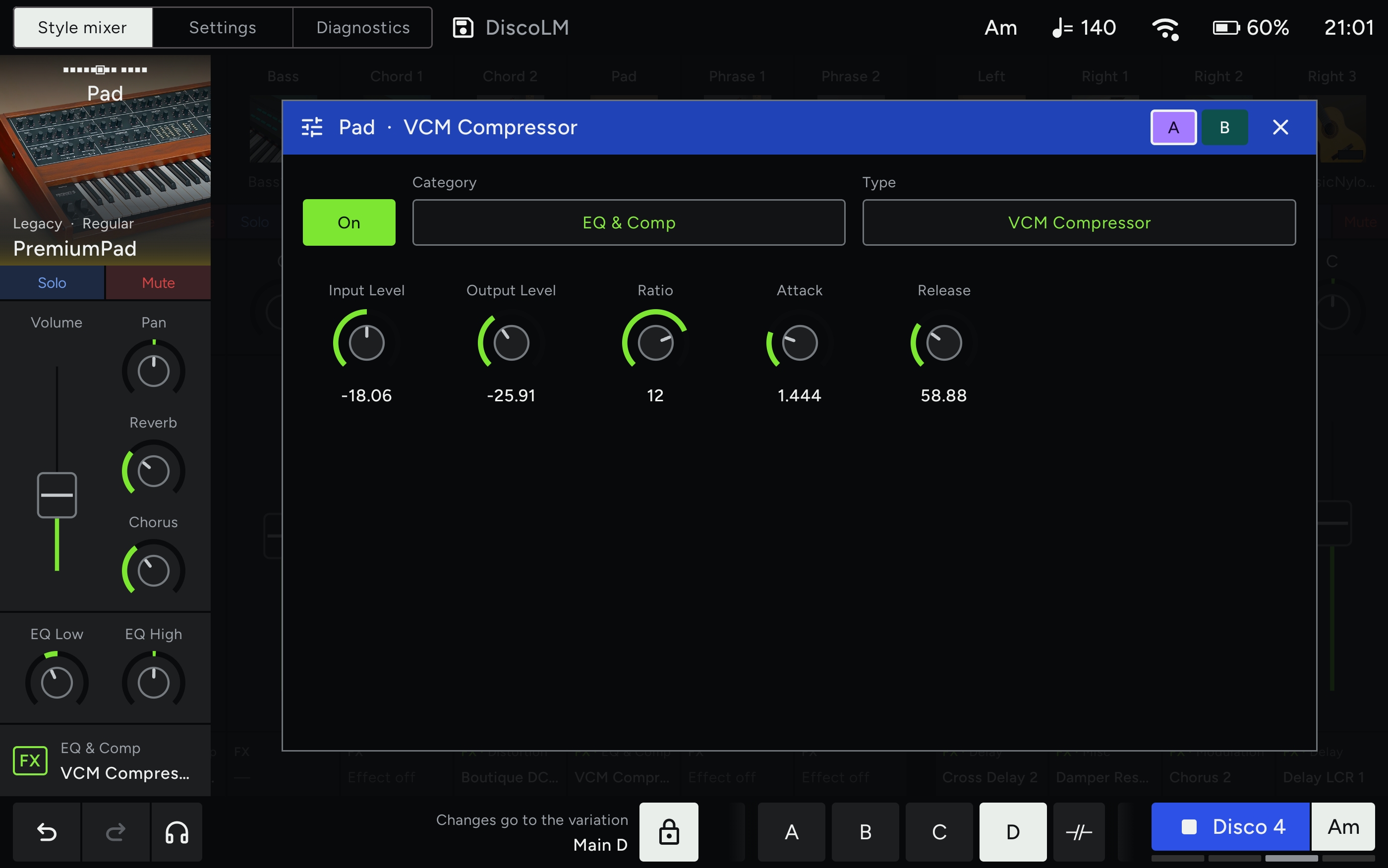
Every insertion effect type the instrument has, on any part, plus the system Reverb, Chorus and Variation, and the Master EQ. Parameters are laid out by what they do: an LFO's rate and depth on a pad, an EQ as a curve you drag, dry/wet on a fader. Flip between A and B to compare two settings.
No guessing: hold a finger on any parameter and the app's header tells you what it is and what it does.
Under the hood
The effect types, their parameters and every value's scale come from the instrument's own data, 559 types in all. The layout goes by a parameter's role, shared across effect families, so the EQ curve fits 225 types and the LFO pad 100; what fits no picture gets a knob, or buttons when it has two or three values.
A is what the effect held when you opened it, B starts as a copy of A. Switching sends only the parameters that differ, and the type only when it's another one.
Wszystkie efekty instrumentu, z objaśnieniami
Każdy typ efektu insertowego, jaki ma instrument, na dowolnej partii, do tego systemowe Reverb, Chorus i Variation oraz Master EQ. Parametry ułożone według tego, co robią: szybkość i głębokość LFO na padzie, EQ jako krzywa do przeciągania, dry/wet na suwaku. Przełączaj A i B, żeby porównać dwa ustawienia.
Bez zgadywania: przytrzymaj palec na dowolnym parametrze, a nagłówek aplikacji powie, co to jest i co robi.
Pod maską
Typy efektów, ich parametry i skala każdej wartości pochodzą z danych samego instrumentu, w sumie 559 typów. Układ wynika z roli parametru, wspólnej dla rodzin efektów, więc krzywa EQ pasuje do 225 typów, a pad LFO do 100; to, co nie pasuje do żadnego wykresu, dostaje gałkę albo przyciski, gdy ma dwie lub trzy wartości.
A to stan efektu z chwili otwarcia, B zaczyna jako kopia A. Przełączenie wysyła tylko parametry, które się różnią, a typ tylko wtedy, gdy jest inny.
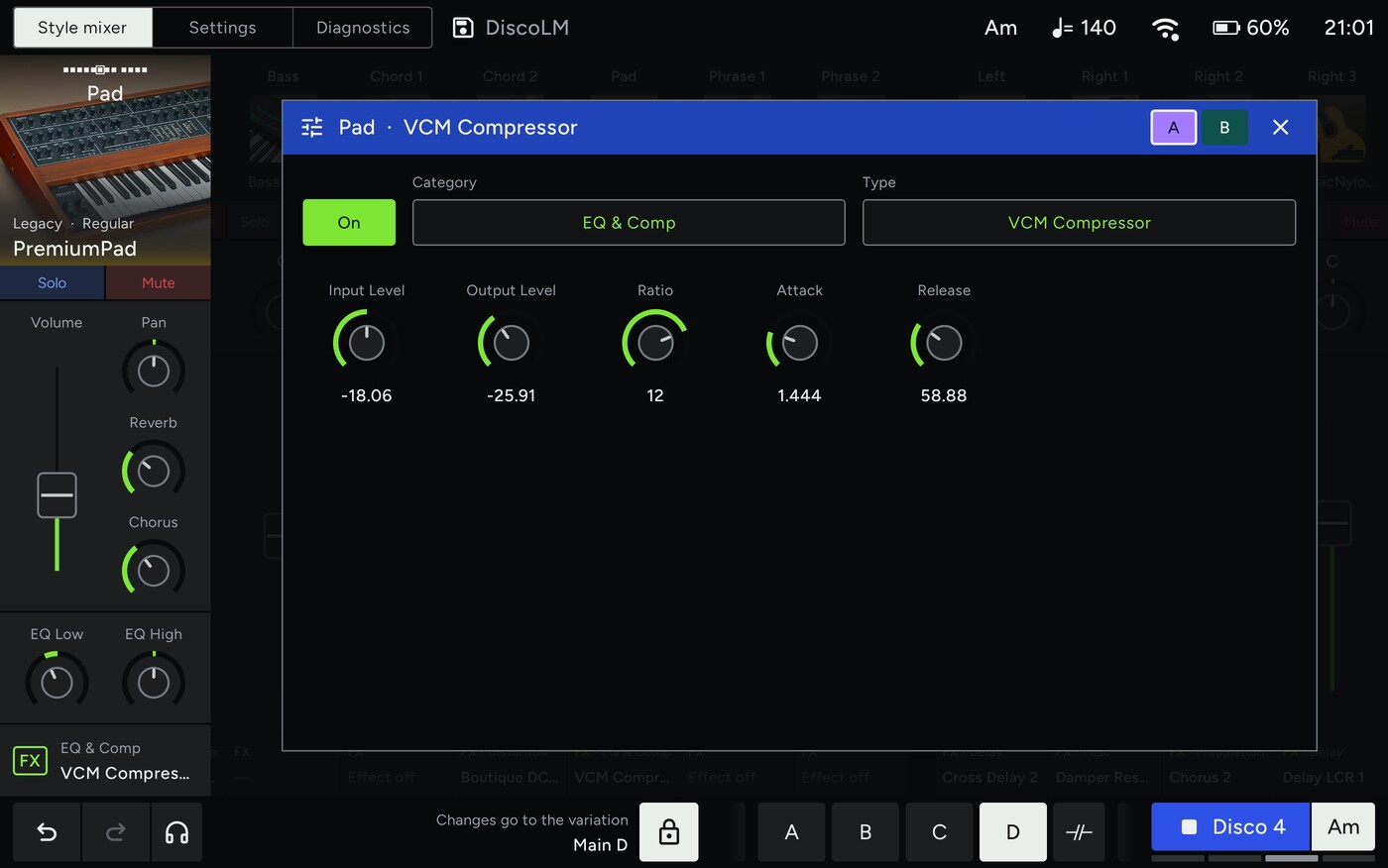
The effect editor with A/B, here a compressor on the padEdytor efektu z A/B, tu kompresor na padzie -
07
newAutomate anything in one tap
Tap the Automation tab and every knob and fader of the style parts gets a frame, effect parameters included. Tap one and draw how it should move through a section: from a quarter of a bar to 16 bars, on a grid down to 1/64. A filter opening across Main B, a reverb swelling into the ending.
The lane plays in time with the style, every time that section comes round. A finger on the control wins while it holds; let go and the lane leads on.
Under the hood
The app follows the instrument's clock, 24 ticks to the beat, and knows which section is playing and where in the bar it is. On every tick it works out which lanes want another value and sends only those, never into the undo history. A lane on an effect parameter is tied to the effect type it was drawn on, since another variation may run another effect.
Worth knowing: a controller the style's own patterns send (pan, cutoff, expression) fights the lane; volume, reverb and chorus are clean. Wi-Fi adds a few milliseconds of jitter, so lanes suit swells better than rhythmic gating. Lanes belong to the style parts.
nowośćAutomatyka wszystkiego jednym dotknięciem
Dotknij zakładki Automation, a każda gałka i suwak partii stylu dostanie ramkę, parametry efektów też. Dotknij jednej i narysuj, jak ma się zmieniać w trakcie sekcji: od ćwierci taktu do 16 taktów, na siatce do 1/64. Filtr otwierający się przez Main B, pogłos narastający przed zakończeniem.
Ścieżka gra w tempie stylu, za każdym razem, gdy ta sekcja wraca. Palec na kontrolce wygrywa, dopóki ją trzyma; puść, a ścieżka prowadzi dalej.
Pod maską
Aplikacja śledzi zegar instrumentu, 24 impulsy na ćwierćnutę, i wie, która sekcja gra i w którym miejscu taktu jest. Przy każdym impulsie sprawdza, które ścieżki chcą nowej wartości, i wysyła tylko te, nigdy do historii cofania. Ścieżka na parametrze efektu jest przypięta do typu efektu, na którym ją narysowano, bo inna wariacja może mieć inny efekt.
Warto wiedzieć: kontroler, który wysyłają same patterny stylu (pan, cutoff, expression), walczy ze ścieżką; głośność, pogłos i chorus są czyste. Wi-Fi dokłada kilka milisekund rozrzutu, więc ścieżki lepiej sprawdzają się w narastaniach niż w rytmicznym bramkowaniu. Ścieżki należą do partii stylu.
A lane on the bass filter in Main A: it opens over three bars and closes in the fourthŚcieżka filtra basu w Main A: otwiera się przez trzy takty i zamyka w czwartym -
08
newSave it, and it comes back by itself
Give the project a name and save it. It holds what you made of the style: voices, mix, effects, automation lanes and your tempo, section by section. A change made in Main A belongs to Main A; the lock on the bottom bar makes a change count for the whole style.
Next time you pick that style on the panel, the app recognises it in 0.1 s and everything is back before the first bar.
Under the hood
During a song: when a section comes in, the instrument sets its parts as the style file says, and within milliseconds the app writes over that whatever you changed for this section. A fill that comes in late in the bar plays on the drums only, as the instrument plays it, and the app follows that too.
Your changes are temporary for the instrument: the style file itself stays as it was. Baking them into the style file is on the roadmap.
nowośćZapisz, a wróci samo
Nadaj projektowi nazwę i zapisz go. Trzyma wszystko, co zrobiłeś ze stylem: brzmienia, miks, efekty, ścieżki automatyki i Twoje tempo, sekcja po sekcji. Zmiana zrobiona w Main A należy do Main A; kłódka na dolnym pasku sprawia, że zmiana obowiązuje w całym stylu.
Gdy następnym razem wybierzesz ten styl na panelu, aplikacja rozpozna go w 0,1 s i wszystko wróci przed pierwszym taktem.
Pod maską
W trakcie utworu: gdy wchodzi sekcja, instrument ustawia partie tak, jak mówi plik stylu, a w ciągu milisekund aplikacja nadpisuje to tym, co zmieniłeś dla tej sekcji. Przejście wciśnięte późno w takcie gra tylko na perkusji, tak jak gra je instrument, i aplikacja też to uwzględnia.
Twoje zmiany są dla instrumentu tymczasowe: sam plik stylu zostaje taki, jaki był. Wpisywanie ich do pliku stylu jest w planach.
On every section change the app sends your settings for that sectionPrzy każdej zmianie sekcji aplikacja wysyła Twoje ustawienia dla tej sekcji
Also in the app
W aplikacji jest też
- Undo that sees everything. The history covers changes from the app and from the instrument's panel, and shows where each came from.
- Auto Chord. The style plays itself through a chord progression while both your hands stay on the tablet.
- Back where you left off. Restart the app or lose the connection, and the style you were working on carries on as it was.
- Cofanie, które widzi wszystko. Historia obejmuje zmiany z aplikacji i z panelu instrumentu, i pokazuje, skąd pochodzi każda z nich.
- Auto Chord. Styl sam gra według progresji akordów, a obie Twoje ręce zostają na tablecie.
- Tam, gdzie skończyłeś. Restart aplikacji albo zerwane połączenie, a styl, nad którym pracowałeś, toczy się dalej tak, jak był.
Beta for Genos2 owners is coming.
Beta dla właścicieli Genos2 już wkrótce.
Want to try it early? Write to contact@continuoconsole.com
Chcesz przetestować wcześniej? Napisz: contact@continuoconsole.com